AI Bedroom Design From a Photo: Try Wall Colors, Headboards, Wardrobes and Lighting Before You Buy
Short answer: Yes. Upload a clear bedroom photo and an AI visualization tool can show a new wall color, a headboard wall, different wardrobe fronts, curtains and lighting before you paint or buy anything. BentoMesh, a Turkish-first AI visualization platform, does this with photo-based tools such as Render Lab's Edit Render mode and Style Comparison, plus a plan-based room builder called Space Workshop (Mekan Atölyesi in Turkish) when you want the bed and wardrobe placed by real dimensions. The result is a decision image, not a measured drawing: AI will not tell you whether the bed fits or how a paint really looks on your wall.
Batuhan Oğan · 16 min read · Published: 2026-10-15 · Updated: 2026-10-15
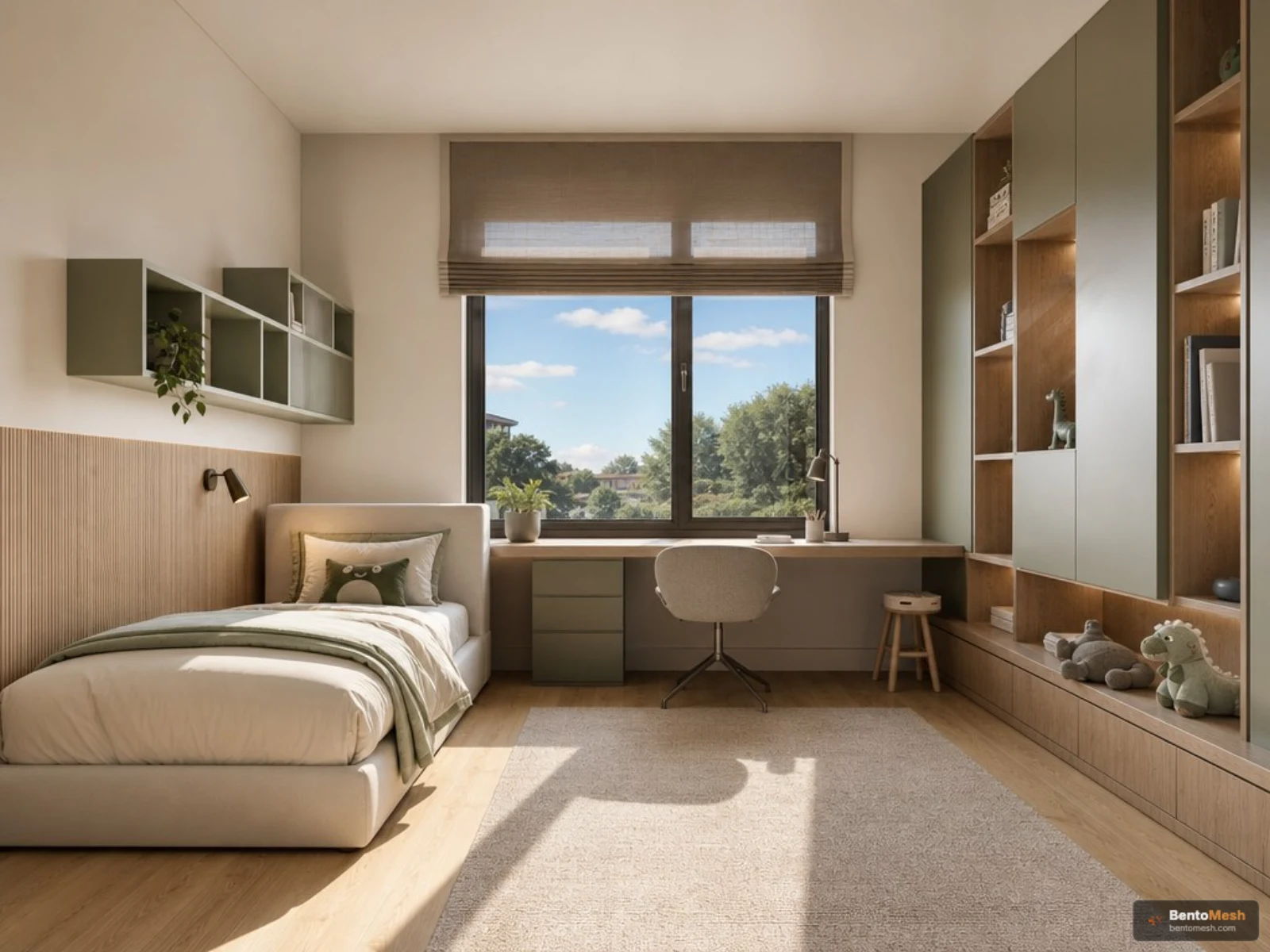
What can you try in a bedroom photo, and with which tool?
Color, material, lighting and style changes work from your photo; furniture fit needs a plan with real dimensions. In BentoMesh the photo side is Render Lab's Edit Render mode, Style Comparison and the iPhone app, and the plan side is Space Workshop. A wall color, a headboard wall or a set of wardrobe doors tends to stay for years, so it pays to see the idea before you commit.
| What you want to try | Tool in BentoMesh | What happens |
|---|---|---|
| Wall color | Render Lab, Edit Render with the Material task; Wall colour in the iPhone app | Only the color is meant to change; furniture stays put |
| Headboard wall | Edit Render, Material task; Add task only if there is no headboard | You change the wall finish or re-cover the existing headboard; a bed without one gets a new one |
| Wardrobe doors | Edit Render, Material task | Door color and finish change; the wardrobe is meant to stay put |
| Curtains, rug, cushions | Edit Render, Add task | Aims to add only the item you name and leave existing pieces in place; compare with your photo |
| Clutter, cables | Edit Render, Remove task | The item is removed and the surface behind it filled in |
| Daylight, evening, night, reading light | Edit Render, Lighting task; Lighting in the iPhone app | Light, shadows and time of day change; the Lighting task can also add sconces or spots if you ask |
| Which style suits the room? | Style Comparison | The same photo is rendered in each style you pick, side by side |
| Where do the bed, nightstands and wardrobe go? | Space Workshop | You enter room dimensions in centimeters and place pieces on a plan |
In Edit Render you can first pick what you want to do (Material, Lighting, Add, Remove or Style) and then write the change in one sentence. Picking a task is optional, but it decides what the model protects: the Lighting task keeps the room and furniture, and the Style task keeps the walls, windows and camera angle. If your bedroom is empty, one of the example prompts on the welcome screen is made for it: “Furnish the empty room as a bedroom.” A Before / After view shows the result next to your photo.
How should you photograph a bedroom for AI?
Shoot in daylight from the corner at the foot of the bed, phone held level, with the headboard wall in front of you and the wardrobe to one side. In a narrow room the ultra-wide lens is tempting, but leaning walls and curved wardrobe doors carry straight into the result.
Framing and light
- Stand in the far corner. If the room is too tight, take two frames: one facing the bed, one facing the wardrobe.
- Hold the phone level. On an iPhone, turn on the grid, use the 1x lens and skip portrait mode.
- Do not shoot into the window. Open the curtains, switch the flash off and keep direct sun out of the frame.
- Mark your spot. Shoot every version from the same place so before and after images line up.
Bedroom-specific details
- Make the bed. A crumpled duvet and clothes on a chair can be read as details worth keeping.
- Watch the wardrobe mirror. Mirrored doors reflect the room and you, which can confuse the result. Pick an angle where the mirror is out of frame or reflects only a plain wall.
- Clear personal items. Keep family photos and documents out of the shot; the photo is processed in the cloud.
- Considering blackout curtains? Take one frame with them open and one closed.
Edit Render accepts JPG, PNG or WEBP files up to 15 MB. HEIC is not on that list, so save iPhone photos as JPG. If a file is too large, the free Make File Compatible tool (Dosya Küçültme, a file-size reducer) shrinks it in your browser, uses no credits and does not send the photo to a server at that step.
Will the bed, nightstands and wardrobe actually fit?
Measure; do not judge fit from the image. Photo-based tools interpret proportions rather than working in centimeters, so a bed can look narrower or a wardrobe shallower than the real one. In a bedroom, a few centimeters decide whether a wardrobe door opens fully.
Measure first
- Take the bed, nightstand and wardrobe sizes from the product details.
- Measure both walls and mark doors, windows, radiators and sockets.
- Tape the bed and wardrobe footprints on the floor and walk around them.
Rules of thumb
These are general interior-design rules of thumb, not standards; they vary with the room and the product:
- Leave roughly 60-75 cm (about 24-30 in) beside the bed on the side you walk.
- Allow roughly 90 cm (about 35 in) in front of a hinged wardrobe; sliding doors usually need less.
- A nightstand top close to mattress height is easier to use.
(Example scenario) In a 300 x 350 cm room (about 9.8 x 11.5 ft), centering a 160 x 200 cm bed with its headboard on the 300 cm wall leaves about 70 cm on each side. Put a 65 cm deep wardrobe on the opposite wall and roughly 85 cm remains between the foot of the bed and the wardrobe, before you count the headboard's thickness. That is borderline for hinged doors and easier with sliding ones. The number comes from a tape measure, not an image.
When you want centimeters
Space Workshop opens on its Bedroom category. Enter the room's width and length in centimeters first, then place pieces such as a double bed (default 160 x 200 cm), a single bed (100 x 200 cm), a headboard, nightstands, a wardrobe, a chest of drawers, a dressing table, a rug and a pouf. Replace the defaults with your own product's size. Every piece needs your own product photo (PNG or JPG, up to 15 MB); rendering will not start while one is missing. The tool is told not to add anything you did not place; if a stray vase or plant still appears, generate again.
The plan is not proof of fit. The tool shrinks a piece that does not fit when you add it, caps a typed size at the room size, and shrinks placed pieces if you later make the room smaller, so check that each width and depth still matches what you typed. It also does not check for overlapping pieces or door swing; use the rules of thumb above and a tape measure for that.
The tool works on a single rectangular room, so an L-shaped bedroom cannot be built in it. The camera looks from the front wall at eye level, and the tool is meant for desktop browsers.
How do you try wall colors and a headboard wall?
Change one thing per attempt: wall color first, then the headboard wall once you like the color. The wall facing the bed and the headboard wall usually set a bedroom's mood more than anything else.
Wall color
In Edit Render, choose the Material task. It is meant to change only materials and colors while keeping object positions, shapes and lighting. One ready-made suggestion is “Paint the walls anthracite gray”, and you can write your own, such as “Paint the walls a light sage green and keep the ceiling white.”
The iPhone app's Wall colour tool is built to repaint only the walls and leave the furniture, floor and ceiling as they are. Its preset colors are off-white, taupe, sage green, petrol blue, terracotta, blush pink and charcoal, and you can preview a color in daylight or in an evening mood.
Headboard wall
Pick the task by what you want to change:
- Wall finish: with the Material task, write “Clad the wall behind the bed in vertical wood slats” or “Paint only the wall behind the bed dark navy and keep the other walls as they are.”
- Re-cover an existing headboard: with the Material task, write “Upholster the headboard in gray linen.” It is meant to keep the headboard's shape, size and position.
- Bed without a headboard: with the Add task, write “Add a wide upholstered headboard.” The Add task does not replace or remove anything already there, so on a bed that already has a headboard you may get a second one or no change at all.
- A new headboard shape: turning the headboard into a wall-height panel fits none of the tasks' keep rules; write it without picking a task and compare the result with your photo.
In Space Workshop the headboard is a separate piece: upload the product photo and set its width.
Work step by step
If you dislike an edit, click an earlier version in the edit history and continue from there, or choose “Apply to the original image” so the next edit runs on your first photo. Three separate steps show which change spoiled the room; one instruction with three changes does not.
How do you try wardrobe doors, curtains and bedding?
Use the Material task for wardrobe doors, the Add task for curtains and textiles, and the Remove task for clutter. A wardrobe often fills a whole wall, so its color matters almost as much as the paint.
- Wardrobe doors: write “Make the wardrobe doors matte off-white with black handles.” The Material task aims to keep the wardrobe where it is and as it is, but still compare the number of doors and the height with your photo.
- Curtains: write “Add floor-length linen-look sheer curtains to the window.” Space Workshop's Architectural category includes curtain and sheer-curtain pieces that snap to a wall and line up with it when you drag them close.
- Rug and cushions: “Add a textured rug on the floor” is one of the ready-made suggestions; describe duvet and cushion colors the same way.
- Tidying up: the Remove task suggests “Remove the clutter and small loose items” and “Remove the visible cables.”
A whole-room style
To see the entire bedroom in another style, open Style Comparison, choose its interior mode (labeled İç Cephe). Four of its twenty-plus interior styles come pre-selected; untick the ones you do not want and keep two or three, such as Japandi, Scandinavian, Contemporary or Wabi-Sabi (up to eight can be selected). The styles are written to change the material palette, colors and mood rather than add new furniture. Each style is generated separately and uses its own credits; you can download all results as a ZIP.
To show the chosen image on a big screen, Upscale enlarges it 2x or 4x; heavy enlargement can invent fine detail, so check it up close.
How do you test bedroom lighting for daytime, evening and reading?
Try light with the Lighting task in Edit Render or the iPhone app's Lighting tool, but decide with real photos taken at different hours; the tools change light and mood, they do not calculate it. Bedrooms usually need three layers: daylight, general evening light and a reading light.
What the tools offer
- Edit Render, Lighting task: only light, shadows and time of day are meant to change. Suggestions include “Make it night with the interior lamps on”, “Increase the daylight from the windows” and “Give it warm sunset light.”
- Reading lights: the Lighting task can add fixtures when you ask (one suggestion is “Add warm recessed spotlights to the ceiling”), so write “Add lit wall sconces on both sides of the bed, evening light” with the Lighting task; use Add only if you just want to see the fixture itself.
- Relight panel: in the desktop Render Lab workspace that opens after a Quick Render result, the Relight button in the sidebar sets light direction, brightness and day or night. It is not on the Edit Render screen or on mobile.
- Lighting (iPhone): keeps the room and furniture and changes only light and atmosphere; the options are daylight, evening, warm tone and cool tone.
- No photo yet? The Create from Scratch form on the Create Render page has ready-made starting points called Cozy Bedroom and Japandi bedroom, and lets you set color temperature to Warm 2700 K, Neutral 4000 K or Cool 5000 K. That is a newly generated room, not yours; use it for ideas.
Read the real light
Warm light is a common choice for bedrooms; that is general practice, not a rule. A bulb's color temperature is printed on its box in kelvins; an image cannot tell you that. Take one frame in the morning and one in the evening from the same spot and set the AI result beside them. If the shadow direction and light color do not match, treat the image as a mood suggestion, not evidence.
What about kids' rooms and small bedrooms, and what can't AI tell you?
The same tools work for a kids' room or a small bedroom; the difference is that the decisions depend even more on measurements and safety.
- Kids' rooms: Space Workshop has a Kids Room category with a child's bed, crib, bunk bed, study desk, toy chest and bookcase, and the iPhone app's Design an empty room tool offers Kids room as a room type. Anchoring furniture to the wall, bunk bed guardrails and socket positions cannot be judged from an image; follow the product's installation instructions for anchoring and guardrails, and plan sockets and wiring with an electrician.
- Small bedrooms: try light walls, sliding wardrobe doors or wall-mounted nightstands one at a time, and tape out the wardrobe on the floor even if the image looks roomy.
Honest limits
- It is not a measurement. Whether the bed fits, how long the curtains should be and how much paint to buy come from real measurements.
- Geometry can change. Windows, wardrobe doors or a wall line may come out differently; BentoMesh does not promise geometry is fully preserved. Compare with your source photo.
- It will not match a product exactly. A headboard described in words may not match any catalog model. Your own product photo in Space Workshop gives the render a color and proportion reference, which is still not a promise of an exact copy.
- Confirm color with samples. Decide on paint and fabric with a sample on your wall, by day and by evening.
- There is no light calculation. Shadow direction and light color are estimates.
- Processing happens in the cloud. Your photo goes through the BentoMesh server and a third-party AI provider that produces the image.
- It is an illustration. In a listing or ad, say it is a rendering, not a photograph.
- Free-tier images carry a watermark. Subscription plans remove the BentoMesh watermark.
- There is no Android app. The iPhone tools live only in the iPhone app, and the tool list may vary with the App Store version.
Registration is free; when you verify your email or phone number, or sign in with Google or Apple, a one-time welcome credit is added to your account, subject to the conditions on the sign-up page. Current packs are on the credits page. This article is also available in Turkish: Türkçe sürüm / Read in Turkish.
Frequently asked questions
Can I try bedroom paint colors on a photo of my room?
Yes. In Render Lab's Edit Render mode, choose the Material task and write something like “Paint the walls a light sage green”; it is meant to change only materials and colors while keeping furniture and lighting. The iPhone app's Wall colour tool repaints only the walls. Screen color is not paint color, so decide with a sample on your wall.
Will AI tell me if a bed and wardrobe fit my bedroom?
Not reliably. Photo-based tools interpret proportions and do not measure in centimeters. In Space Workshop you can enter the room and furniture dimensions to visualize a layout, but the output is still a presentation image. Measure with a tape, mark the footprints on the floor and check that hinged wardrobe doors can open fully.
How do I try a headboard wall idea before buying anything?
For a wall finish, pick the Material task in Edit Render and write “Clad the wall behind the bed in vertical wood slats.” Use the Material task too if you want to re-cover an existing headboard. Use the Add task only when the bed has no headboard, because it does not replace what is already there. For a new headboard shape, write it without picking a task and compare the result with your photo. Ask for one change per attempt.
Can I use it to plan a kids' bedroom?
Yes. Space Workshop has a Kids Room category with a child's bed, crib, bunk bed, study desk and toy chest, and the iPhone app's Design an empty room tool offers Kids room as a room type. The image gives color and layout ideas; safety decisions such as anchoring furniture to the wall, bunk bed guardrails and socket positions cannot be taken from it. Follow the installation instructions for anchoring and guardrails, and plan sockets with an electrician.
Is it free to try, and is there an app?
Registration is free, and current packs are on the credit packs page. The file-size reducer is free. Free-tier images carry a BentoMesh watermark. The web tools run in a browser and there is an iPhone app, but no Android app.
Can I see bedroom ideas if I don't have a photo yet?
Yes. The Create from Scratch form on the Create Render page has ready-made starting points called Cozy Bedroom and Japandi bedroom, and you can change the style, materials and color temperature in the form. The result is a newly generated room, not yours, so use it to collect color and mood ideas. When you want to see an idea in your own room, upload a photo of it to Edit Render.
Should I try wall colors on the web or in the iPhone app?
Either works. On the web, choose the Material task in Render Lab's Edit Render mode and describe the color in your own words; you can also ask to keep the ceiling white or paint only one wall. In the iPhone app's Wall colour tool you pick one of the preset colors and can preview it in daylight or in an evening mood. There is no Android app.